
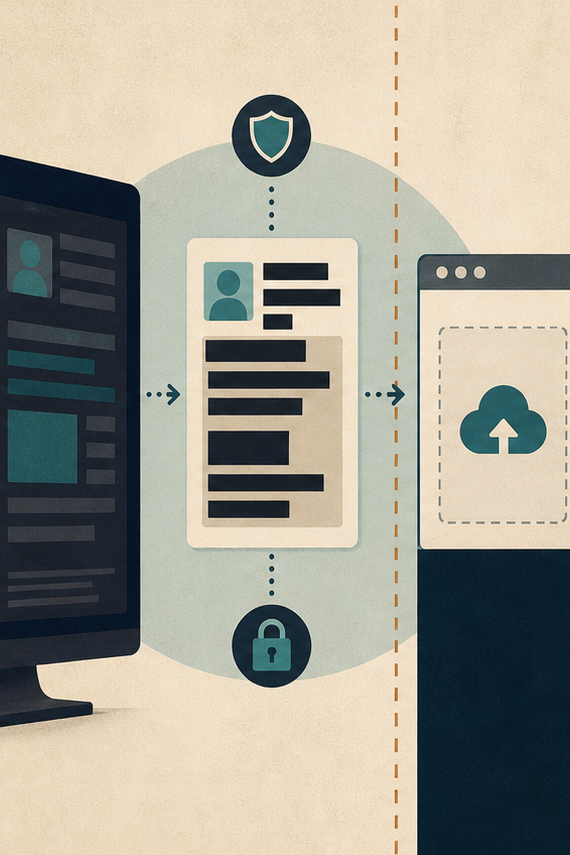
Blurring a password after an image has entered an online editor is too late. The screen capture, metadata, browser upload, or service-side working file may already contain the secret. The final export can look safely obscured while the original exposure remains outside the frame.
The boundary must move earlier. Create a sanitized derivative locally, verify that sensitive pixels and metadata are gone, and upload only that derivative. This pre-upload sensitivity boundary turns redaction into a data-handling step rather than a decorative effect.
Classify Sensitive Content Before Opening an Editor
Inspect the entire source at full size. Look for credentials, recovery codes, account numbers, addresses, faces, badges, private tabs, QR codes, browser history, device identifiers, and reflections. Check the edges, where unrelated applications often remain visible in a screenshot.
Classify each finding as remove, replace, crop, or retain with authorization. Blur is not removal: reversible filters, thumbnails, or alternate exports may preserve structure. If a value is unnecessary, replace its pixel region with a solid fill in a local tool and flatten the result.
Do not use live secrets as demonstration material. Recreate a screen with fictional values when the point is instructional. Revoking a credential after exposure may still be necessary, but rotation does not make the original image suitable for upload.
Consider combinations, not only individual fields. A first name, street fragment, and school badge may identify someone even when none seems sensitive alone. Note these compound risks in the classification and remove enough context that the derivative no longer reconstructs the private fact.
Ask whether an image is necessary at all. A diagram built from fictional components may explain a browser setting better than a redacted production screenshot. Data minimization can eliminate the upload decision and produces a cleaner teaching asset.
Create a Sanitized Derivative on the Device
Duplicate the source and work on the copy. Crop away irrelevant windows, cover sensitive regions with opaque shapes, flatten all layers, and export to a new raster file. Remove embedded location, author, device, and comment metadata when it is not required.
Reopen the exported derivative in a different viewer. Zoom into every redacted region, inspect its thumbnail, and search metadata. Confirm that undo history or editable layers are not included. Keep the original in an access-controlled location rather than beside the upload-ready file.
Use a fresh canvas for high-risk sources. Pasting only the approved visible region into a new raster document reduces the chance that hidden layers, off-canvas objects, or document history accompany the export. It does not replace pixel inspection, but it narrows what the derivative can contain.
Calculate a hash for the verified derivative and record it. If the file is renamed, moved, or downloaded again, the hash distinguishes the inspected bytes from a look-alike. Reverify after any change to pixels, dimensions, encoding, or metadata.
|
Check |
Failure signal |
Required action |
|
Pixels |
Characters or QR modules remain |
Replace and flatten |
|
Edges |
Private tab or notification visible |
Crop or cover |
|
Metadata |
Location or author retained |
Strip and re-export |
|
Thumbnail |
Original preview survives |
Create a fresh derivative |
Upload the Verified Derivative Step by Step
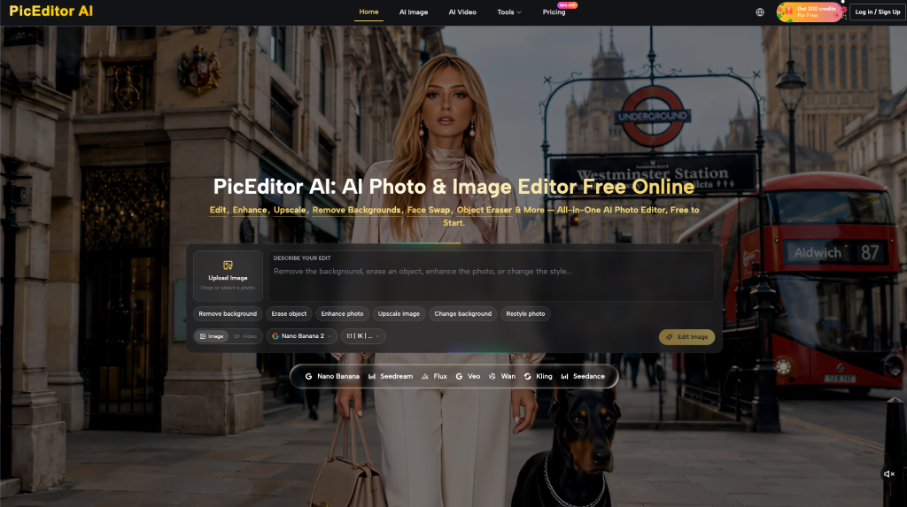
PicEditor.ai accepts common image formats and offers routes for erasure, background change, enhancement, and other instructed edits. An AI Photo Editor should receive only the sanitized derivative, never the sensitive source.
Name the upload file with a neutral identifier that does not expose a client, account, incident, or person. Ask for one visual change at a time and avoid instructions that repeat removed secrets in text. PicEditor.ai can edit the supplied pixels; it is not the place to perform the first confidentiality decision.
If the required edit depends on a sensitive region, stop and choose a controlled workflow approved for that data. Do not weaken the boundary because the browser route is convenient. A feature capability does not establish that a particular file is appropriate to upload.
Use a dedicated browser profile when organizational policy requires separation from personal accounts, extensions, and cloud sync. Confirm the destination before selecting the file. Similar filenames are a common reason an original is uploaded in place of its sanitized derivative.
Know the Privacy Limitations of Image Sanitization
Local sanitization reduces the content exposed in an upload; it does not establish how a service stores, processes, or retains a file. Those questions require the service’s current terms, privacy documentation, and the organization’s own approval. Do not infer them from the editing interface.
Inspect Every Generated Export for Reappearance
Redaction cannot repair an earlier disclosure. If the source was already sent, cached, or indexed, handle that incident separately. The sanitized workflow prevents a new copy from carrying the same data; it does not erase copies outside its control.
A sanitized screenshot may still reveal context through layout, application choice, language, timestamps, or unique error messages. Review meaning as well as characters. If the combination could identify a system or incident, replace the screenshot with a synthetic diagram rather than adding more blur.
Compare the result with the sanitized derivative, not the original. Confirm that filled regions remain opaque and that generation has not invented plausible text, faces, or codes where content was removed. Invented credentials are still misleading, even if they are not the original secret.
Download the exact delivery file and inspect its pixels and metadata. Do not approve from a small browser preview. Check alternate sizes and thumbnails if the workflow creates them, because an apparently safe master may coexist with an older preview.
Open the candidate in a hex or metadata inspection utility appropriate to the file type when the sensitivity warrants it. Look for embedded comments, profiles, thumbnails, and application fields. The visible canvas is only one part of an image file.
Use an photo edit candidate only for the defined visual purpose. If background cleanup unexpectedly changes a redacted area, reject it rather than patching over the patch. Rebuild from the verified derivative to avoid accumulating uncertain layers.
Close the Working Set After Delivery
Record the source owner, sensitivity categories, local redaction method, derivative hash, upload purpose, and approved output. Retain only what policy requires. Remove working downloads from shared folders and revoke any exposed credential through its real security process.
Document deletion or retention separately for the local original, sanitized derivative, and generated result. They have different risk and evidence roles. A blanket “delete files” note is not enough to show which copy remains recoverable and why.
Have a second person repeat the derivative check when the image contains high-impact credentials or personal data. The second review should start from the classification list and inspect the exported bytes independently, not merely confirm the first reviewer’s marks.
PicEditor.ai should be documented as the candidate-generation step after sanitization. It should never appear as evidence that the source was safe. That verdict belongs to the pre-upload inspection and local derivative.
The decisive moment is before the browser receives bytes. Classify, replace, flatten, strip metadata, and verify locally. Only then upload the derivative, inspect the result, and close the working set with a redaction log.